
User Menu
The User Menu is the in-game menu. Press Escape while playing to open it — both in the editor
and in a standalone game. Along the top is a volume control and a settings button; in the middle is
a row of tabs (Game, Controls, and Console); along the bottom are the main action
buttons.
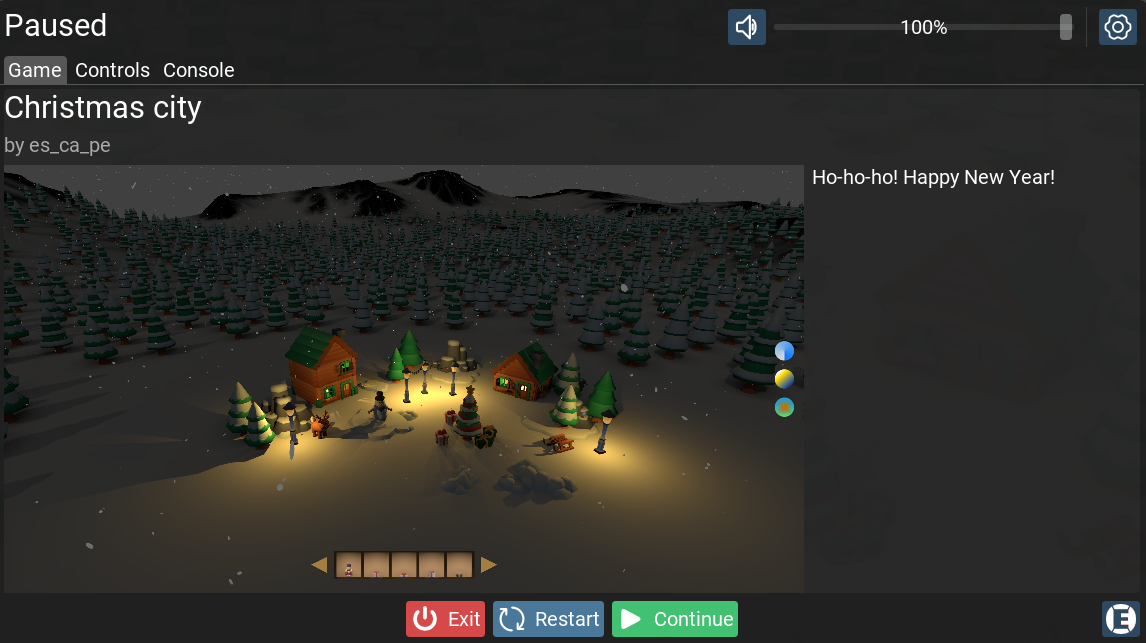
Volume and settings
The top of the menu has a mute button and a volume slider (0–100%), and a settings button (the gear) that opens a popup with the UI Scale controls — the same auto-scale and scale options as in Preferences.
Game tab
Shows the project’s title, author, description, and preview image. If the game has hit a compilation or runtime error, the error is shown here with a hint to press Restart to continue playing.
Controls tab
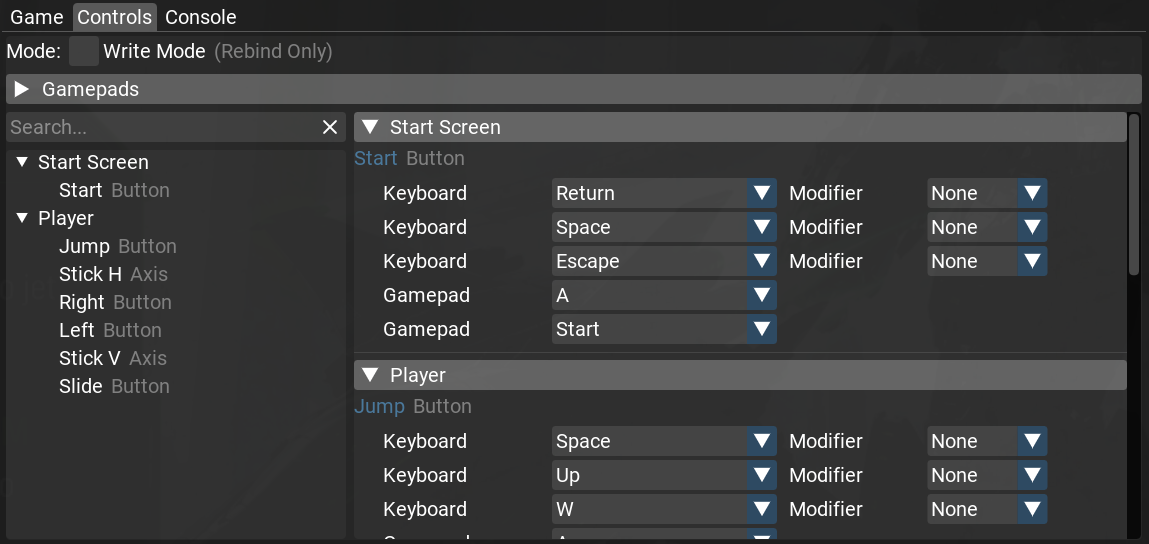
Lets the player view and rebind the game’s input actions. Each action lists its bindings, and you can add bindings for keyboard, mouse, and gamepad inputs — including analog sticks, triggers, and D-pads.
A Write Mode toggle switches between Rebind Only (the default — change existing bindings) and Full Control (also add and remove bindings and actions).
A live gamepad visualizer shows the connected controller’s state: a button grid, the analog sticks (with their dead zones), and the triggers.
Console tab
The in-game console — the same console as the editor’s Console panel. This tab is available only when the editor is not active.