
Vibecoding: Making Games with AI Tools
This guide walks you through setting up EdenSpark to work with AI coding tools — so you can describe a game in plain words and have an AI agent build it while the editor is running.
We’ll use Claude Code as the primary example, but the setup also works with Cursor, GitHub Copilot, and any MCP-compatible tool.
Prerequisites
Before you start, make sure you have:
EdenSpark installed and working (see Start Here if you haven’t set it up yet)
An AI coding tool — at least one of the following:
Other MCP-compatible agents
VS Code (optional) — for the Edit → Open VS Code Project shortcut and the ready-made AI assistant extensions
Step 1: Create a Project
Open the EdenSpark Launcher.
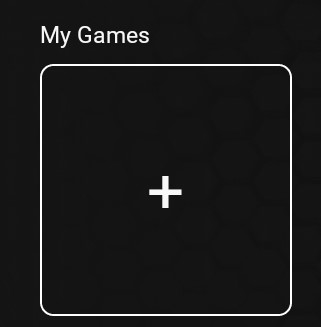
Click the button under My Games to create a new game.
Pick a template — 2D or 3D. It doesn’t matter which one; the AI will rewrite the code anyway. Clone it to create your project.
On the game page, click Edit to open the EdenSpark Editor with your project.
Step 2: Set Up AI Tools
Open your project folder in the AI tool of your choice. You have a few easy options:
VS Code with an AI plugin — go to Edit → Open VS Code Project to open your project in VS Code. Most AI assistants ship a ready-made VS Code extension (for example, Claude Code or Gemini); install one and start chatting right inside the editor — no terminal needed.
A terminal from the editor — right-click in the Project window and choose Open in Terminal.
A terminal from your IDE — open the project in your favorite IDE (in VS Code, use Edit → Open VS Code Project from the editor) and use its integrated terminal.
Whichever way you choose, the tool is already configured for you. When you cloned the project, EdenSpark auto-generated configuration files for several AI tools:
Claude Code —
CLAUDE.mdwith MCP tool reference and Daslang language guideGemini CLI —
GEMINI.mdwith MCP tool reference and Daslang language guide, plus.gemini/settings.jsonwith the MCP connectionCursor —
.cursorruleswith Daslang language referenceGitHub Copilot —
.github/copilot-instructions.mdwith Daslang language referenceOther agents —
AGENTS.mdwith Daslang language guide and Game Designer instructionsMCP connection —
.mcp.jsonpointing to the running editor and Context7 documentation server
You don’t need to configure these manually — they’re ready to go.
Setting up Claude Code
If you haven’t installed Claude Code yet, follow the setup guide.
Start Claude Code in your project folder — from a terminal or via the VS Code extension. That’s it — Context7 (live EdenSpark and Daslang documentation) and EdenSpark MCP (editor connection) are both configured in the project’s .mcp.json and picked up automatically.
Setting up Gemini CLI
Start Gemini in your project folder — from a terminal or via the VS Code extension. The EdenSpark and Context7 MCP servers are configured in .gemini/settings.json and picked up automatically.
Setting up Cursor or Copilot
No extra setup needed. Open the project folder in your tool — the configuration files are already generated. For MCP support, check your tool’s documentation on how to connect to an MCP server (the .mcp.json file in your project root has the connection details).
Step 3: Verify the Connection
Before you start generating, make sure everything is connected.
Note
The EdenSpark Editor must be running for MCP to work. The MCP server starts together with the editor. If you have multiple editor instances open, they will compete for the same port — keep only one running.
The launcher does not affect MCP.
In Claude Code, type /mcp to check connected tools (other tools have their own command). You should see both:
EdenSpark — connected to the running editor
Context7 — connected to the documentation server
If EdenSpark MCP is not connected, make sure the editor is running and that you opened the project from the launcher.
If Context7 is not connected, make sure you opened the project from its folder (where .mcp.json is located).
Step 4: Start Building
Describe your game. A good starting prompt looks like this:
Create a variation of Flow Free game. Here's a description of the gameplay:

<paste gameplay description here>
Tip
For describing gameplay, copy-pasting a Wikipedia article about the game you want to recreate works surprisingly well. The AI gets a clear picture of the mechanics, rules, and win conditions.
Step 5: Design Before You Code
Don’t jump straight into code. Ask the agent to produce a Game Design Document (GDD) first — a short document describing the core loop, controls, win/lose conditions, game objects, and visual style.
Take a moment to review it:
Does the core loop match what you had in mind?
Are the controls right?
Is the scope realistic for a first version?
Ask the agent to adjust anything that’s off — “change the controls to mouse only”, “remove the timer, make it endless”, “look up more reference games for the scoring system”. You can go back and forth a few times until the GDD feels right.
Once you confirm the design, the agent switches to implementation.
Step 6: Watch It Build
The agent will:
Look up relevant APIs via Context7
Inspect the current scene in the editor
Write Daslang code, save it, and watch the editor hot-reload
Check compilation status — if there are errors, it reads and fixes them
Take a screenshot to verify the result
Simulate input to playtest the game loop
Iterate until the game works
You can keep iterating from there: “make the ball faster”, “add a score counter”, “change the background color” — the agent modifies the code and verifies each change in real time.
Tips
Keep the editor running. The MCP server lives inside the editor process. If you close the editor, the AI loses its connection to the scene.
One editor instance at a time. Multiple editors will fight over the MCP port. Stick to one.
Be specific in your prompts. “Make a platformer” is vague — “Make a single-screen platformer where the player jumps between platforms to collect coins, with a 60-second timer” gives the AI much more to work with.
Iterate in small steps. Rather than describing the entire game upfront, build it feature by feature. Get the core loop working first, then add scoring, then add menus.
Samples as learning material. You can tell the agent to study the bundled sample projects for reference — it will look at working code and apply the same patterns. Be aware that reading sample sources consumes tokens, so point the agent at specific samples rather than asking it to read all of them.