
Console
The Console shows the log output of the editor and the running game, and lets you type
commands. In the editor it is a docked panel (by default at the bottom, next to the Project
panel); while playing, the same console is reachable from the User Menu (press Escape and
open the Console tab).
For the commands you can type here — and how to add your own — see Console Commands and Cheats.
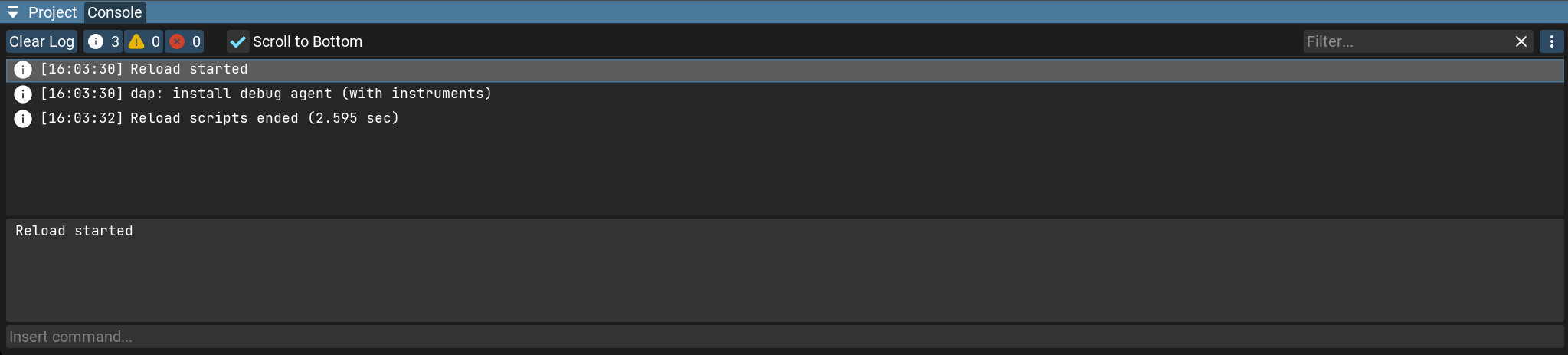
Log toolbar
The row above the log holds its controls:
Clear Log — remove all entries currently in the console.
Level filters — three toggle buttons, Error, Warning, and Info, each showing how many entries of that level are present (counts above 9999 are shown as
9999+). Click a button to show or hide that level; holdCtrland click to show only that level.Scroll to Bottom — when enabled, the log keeps following the newest entries; it switches off automatically if you scroll up.
Filter… — a search field that keeps only the entries containing the typed text.
Options (the
⋮button) — a menu with the following settings:Clear Log on Play — clear the log every time the game starts.
Clear Log on Compile — clear the log on every (re)compile.
Show Timestamp — prefix each entry with the time it was logged.
Log Entry — how many lines of each entry to show (1–10).
Full Log Position — where to show the full text of the selected entry: Close Window (off), Move to Right, or Move to Bottom (see Full log panel below).
Open Text Log — open the complete log file on disk.
Log entries
Each entry shows an icon for its level, an optional timestamp, and the message (truncated to the number of lines set by Log Entry).
Selection — click to select an entry;
Ctrl+ click toggles individual entries,Shift+ click selects a range, and you can drag a box to select several at once.Copy — right-click for a context menu, or use the shortcuts:
Ctrl+Ccopies the selected message(s);Ctrl+Shift+Ccopies them with the full stack trace.Go to source — double-click an entry to open the file it came from at the relevant line in the code editor.
Full log panel
When Full Log Position is set to Move to Right or Move to Bottom, an extra panel shows
the complete text of the currently selected entry, including its full stack trace. Within it you
can select individual lines, copy them (Ctrl+C or the right-click menu), and double-click a
line to jump to that file and line in the code editor.
Command input
The field at the bottom (Insert command…) runs console commands:
Type a command and press
Enterto execute it. The result is printed to the log; unknown commands reportUnknown command, and console variables print their current value.As you type, a list of matching commands appears with their descriptions — press
Tabto auto-complete, or click an entry to insert it.Up/Downbrowse the command history (the last 100 commands are kept).
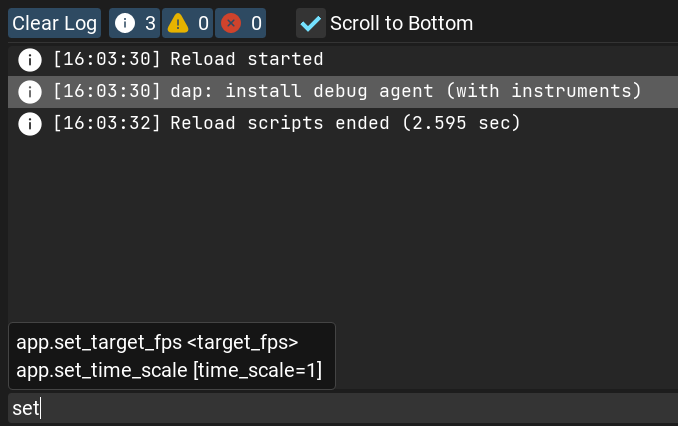
See Console Commands and Cheats for the list of available commands and how
to define your own with the [cheat] annotation.
Error and warning badge
When the console contains errors or warnings, the Console tab title shows their count: the error count in red, or — if there are no errors — the warning count in yellow.
A compilation error also raises a notification with a button that jumps straight to the offending line.