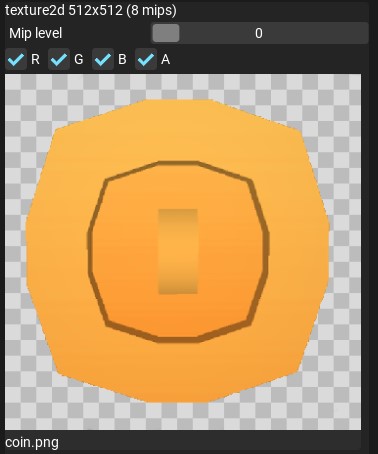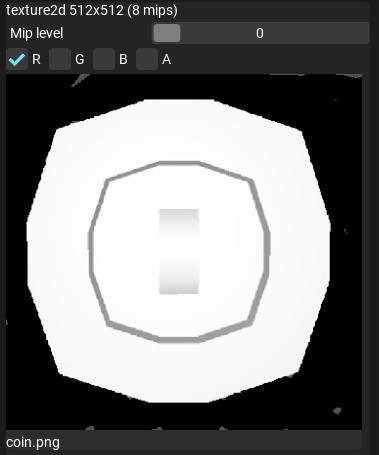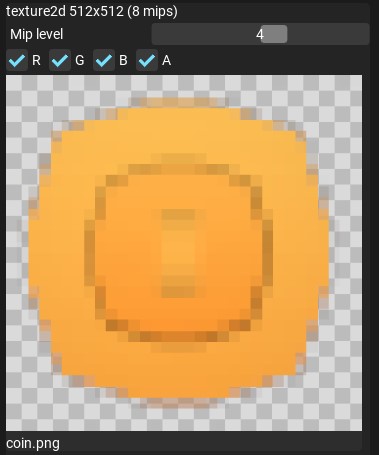
Texture Editor Tools
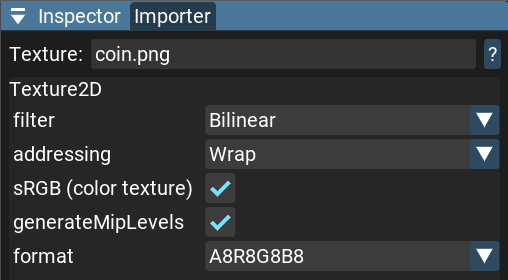
Texture Filtering
Point - This filter is the fastest but does not perform any blending. It is useful for pixel graphics or UI.
Bilinear - This filter is slower than Point, but it performs blending between pixels.
Anisotropic - More expensive than Bilinear, but provides better quality for textures viewed at oblique angles.
Anisotropic Level
Anisotropic level for texture filtering. It is used only if the filter is set to Anisotropic.
It can be between 1 and 16. The higher the value, the better the quality of the texture, but the more expensive it is to render.
Texture Wrapping
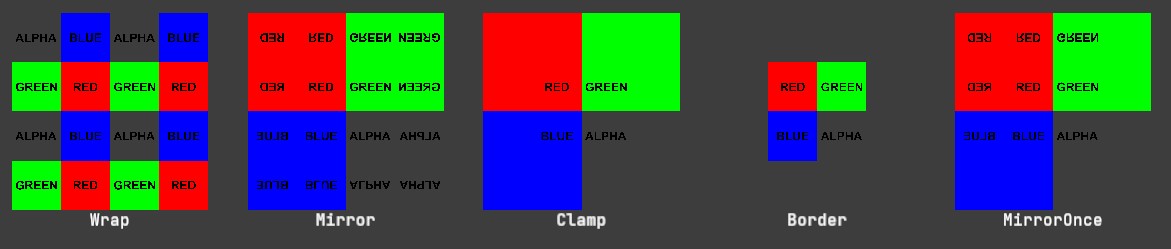
Wrap - Repeats texture UV coordinates.
Mirror - Mirrors UV coordinates.
Clamp - Clamps texture UV coordinates. Samples border pixels.
Border - Samples zero values for border pixels.
MirrorOnce - Mirrors only once for positive UV coordinates.
sRGB Color Space
Generate Mip Levels
Formats

A8R8G8B8 - 32-bit ARGB pixel format with alpha, using 8 bits per channel.
A2R10G10B10 - 32-bit ARGB pixel format using 10 bits for each color channel and 2 bits for alpha.
A2B10G10R10 - 32-bit ABGR pixel format using 10 bits for each color channel and 2 bits for alpha.
A16B16G16R16 - 64-bit ARGB pixel format using 16 bits for each channel.
G16R16 - 32-bit RG pixel format using 16 bits for each channel.
R8 - 8-bit red channel only.
A8 - 8-bit alpha channel only.

A32B32G32R32F - 128-bit ARGB pixel format using 32 bits for each channel (float).
G32R32F - 64-bit RG pixel format using 32 bits for each channel (float).
R32F - 32-bit red channel only (float).
A16B16G16R16F - 64-bit ARGB pixel format using 16 bits for each channel (half).
G16R16F - 32-bit RG pixel format using 16 bits for each channel (half).
R16F - 16-bit red channel only (half).

A32B32G32R32UI - 128-bit ARGB pixel format using 32 bits for each channel (unsigned int).
R32G32UI - 64-bit RG pixel format using 32 bits for each channel (unsigned int).
R32UI - 32-bit red channel only (unsigned int).
A16B16G16R16UI - 64-bit ARGB pixel format using 16 bits for each channel (unsigned int).
R8UI - 8-bit red channel only (unsigned int).

DXT1 - DXT1 compressed format. Doesn’t support alpha. Compression ratio 6:1.
DXT3 - DXT3 compressed format. Has sharp alpha. Compression ratio 4:1.
DXT5 - DXT5 compressed format. Has gradient alpha. Compression ratio 4:1.
ATI1N - ATI1N compressed format, also known as BC4. Single red channel map. Compression ratio 8:1.
ATI2N - ATI2N compressed format, also known as BC5. Two channel map. Compression ratio 4:1.
Warning
Compressed formats are lossy. This means you can lose some quality in your texture. However, it is a good trade-off between quality and memory usage.
Warning
Texture compression is platform-dependent. This means different platforms can have different texture compression formats. That is not yet properly supported.
Preview