
Animations
Import Settings
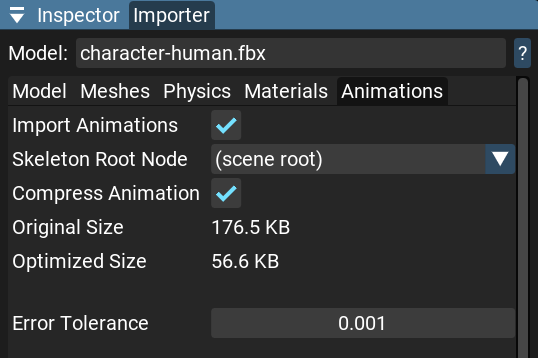
Here you can see the import settings for animations.
Typically, you want to import animations from the model asset and compress them, because animation assets are often much larger than the required limit.
- Import Animations - You can disable importing animations altogether if you don’t need them.
- Skeleton Root Node - Select which node in the model hierarchy becomes the skeleton root. Defaults to
(scene root).- Compress Animation - Compress imported animations to reduce memory usage and improve runtime performance. When enabled, the Optimized Size is displayed so you can see the compression ratio.
- Error Tolerance - The maximum error (in meters, 1mm by default) that optimization is allowed to generate on the whole joint hierarchy.
Animation List
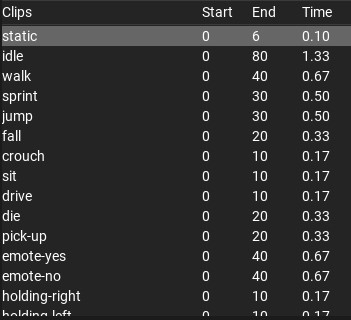
Here you can see all animations that are part of the model asset.
- Clips - Names of animation clips contained in the animation. Click the clip name to select it for playback in the preview below.
- Start - The number of the starting frame of the clip.
- End - The number of the ending frame of the clip.
- Time - Duration of the clip in seconds.
Below the settings, a collapsible Joints section lists all skeleton joint names and their count.
Preview
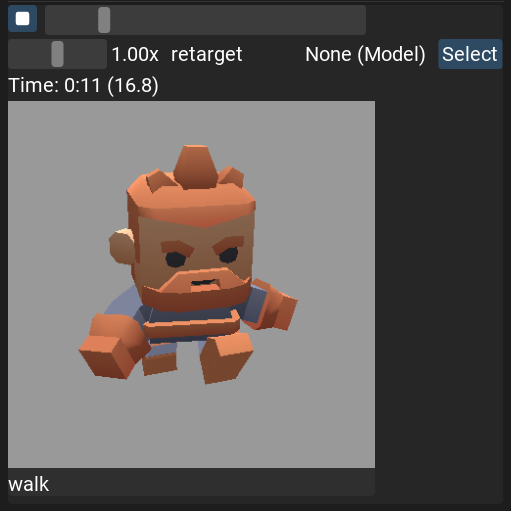
Here you can see the animation preview.
You can play the animation and adjust the playback speed and frame.
- Play/Stop button - Starts or stops animation playback.
- Progress slider - Scrub through the animation timeline.
- Speed slider - Adjust playback speed from 0x to 2x.
- Time format:
seconds (percentage)The animation preview displays the animation on the model included in the asset.
However, if the asset does not contain a model with a matching skeleton, the animation cannot be displayed.
In that case, you can use the
change button and select the model in the scene to retarget the animation to that model’s skeleton.