
Linux Setup Guide
Native Linux build is still a work in progress. In the meantime, you can run EdenSpark on Linux in one of two ways:
via Steam (Proton) — recommended on Steam Deck and SteamOS, and the simplest option if you already use Steam
via wine — a lighter-weight setup that doesn’t require Steam
Pick whichever fits your environment. Both run the same Windows build of EdenSpark; only the compatibility layer differs.
Steam (Proton)
This path uses Steam’s Proton compatibility tool to run the EdenSpark Updater (and EdenSpark itself) as a non-Steam game. It is the most convenient option on Steam Deck / SteamOS and works on any distribution that has Steam installed.
Prerequisites
A working Steam installation (native package or Flatpak).
Download the installer
Download the EdenSpark installer here
and save it somewhere convenient, for example ~/Downloads/edenspark_updater_1.0.0.16.exe.
Add the installer as a non-Steam game
In Steam, choose Games → Add a Non-Steam Game to My Library…, click Browse…,
and pick the downloaded edenspark_updater_*.exe. Tick it in the list and press Add Selected Programs.
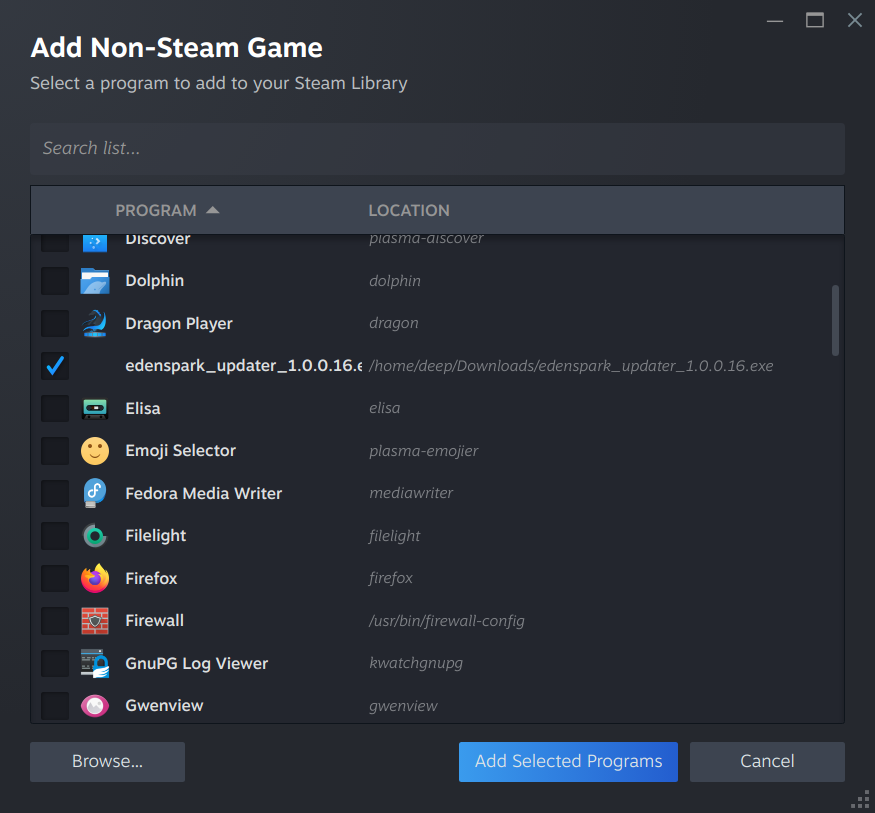
Force Proton for the updater
The installer is a Windows .exe, so Steam needs to be told to run it through Proton.
Right-click the new entry in your library, choose Properties → Compatibility, tick
Force the use of a specific Steam Play compatibility tool, and select a recent Proton
(Proton Experimental is a safe default).
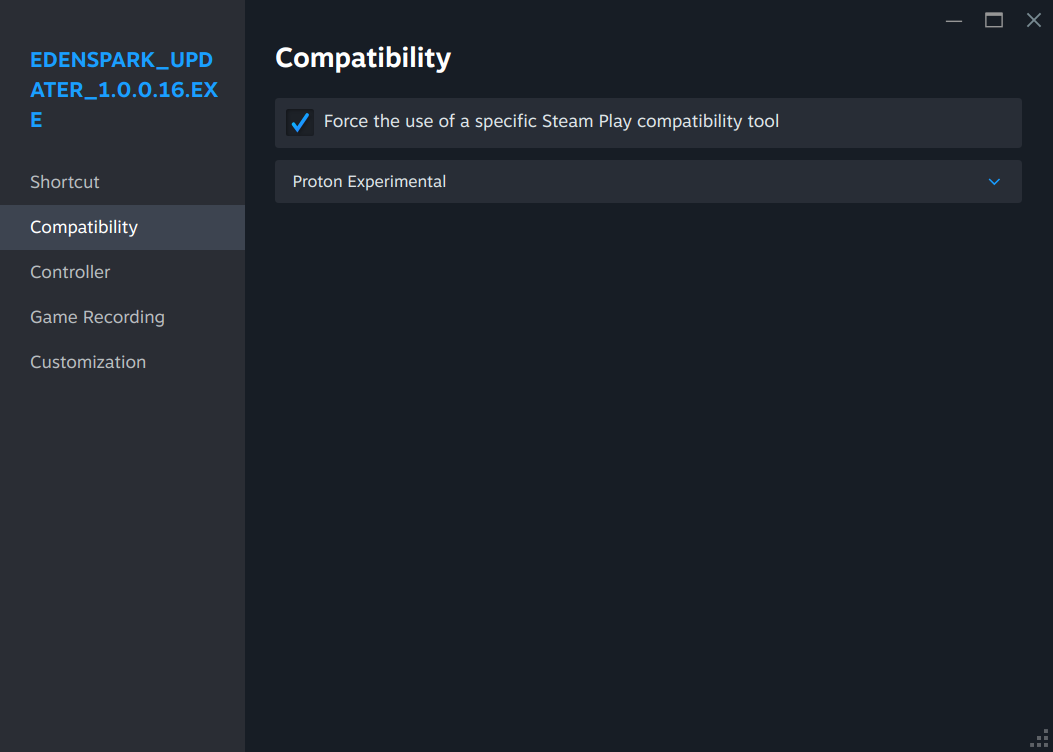
Run the installer
Press Play on the updater entry. The standard EdenSpark installer will appear. Choose Install for me only (recommended) unless you have a specific reason to install system-wide: “all users” requires administrative privileges, which makes little sense inside a Proton prefix.
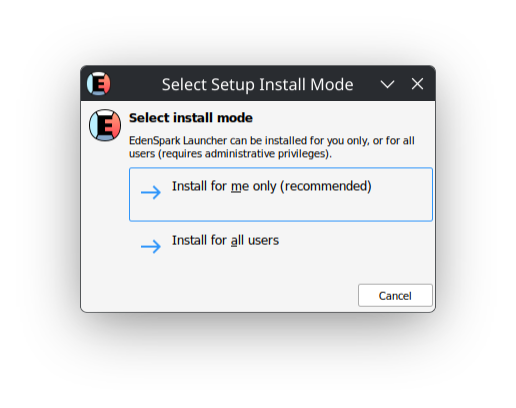
Follow the installer through to completion.
Switch to the installed launcher
After installation, the EdenSpark Launcher lives inside Steam’s Proton prefix for this entry,
under a per-app compatdata directory whose numeric ID is assigned by Steam — something like:
~/.local/share/Steam/steamapps/compatdata/<APPID>/pfx/drive_c/users/steamuser/AppData/Local/EdenSpark/launcher.exe
The simplest way to find it is to open your file manager in ~/.steam and search for launcher.exe.
Pick the hit whose path contains compatdata/<APPID>/...AppData/Local/EdenSpark — the other launcher.exe
results under windows/system32 etc. belong to Proton’s own runtime and are not what you want.
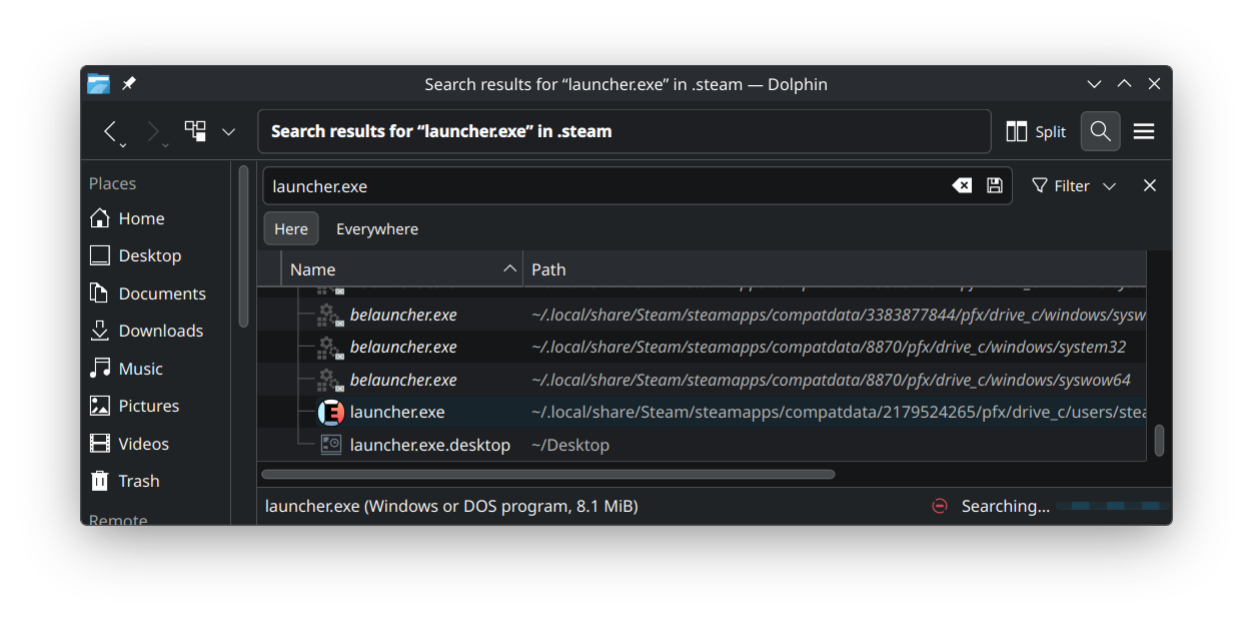
Then edit the existing non-Steam shortcut to point at it: right-click the entry in Steam,
Properties → Shortcut, and change the Target from the updater .exe to the launcher.exe path you just found.
Keep the Compatibility override (Proton) on the same entry.
Pressing Play now opens the EdenSpark Launcher:
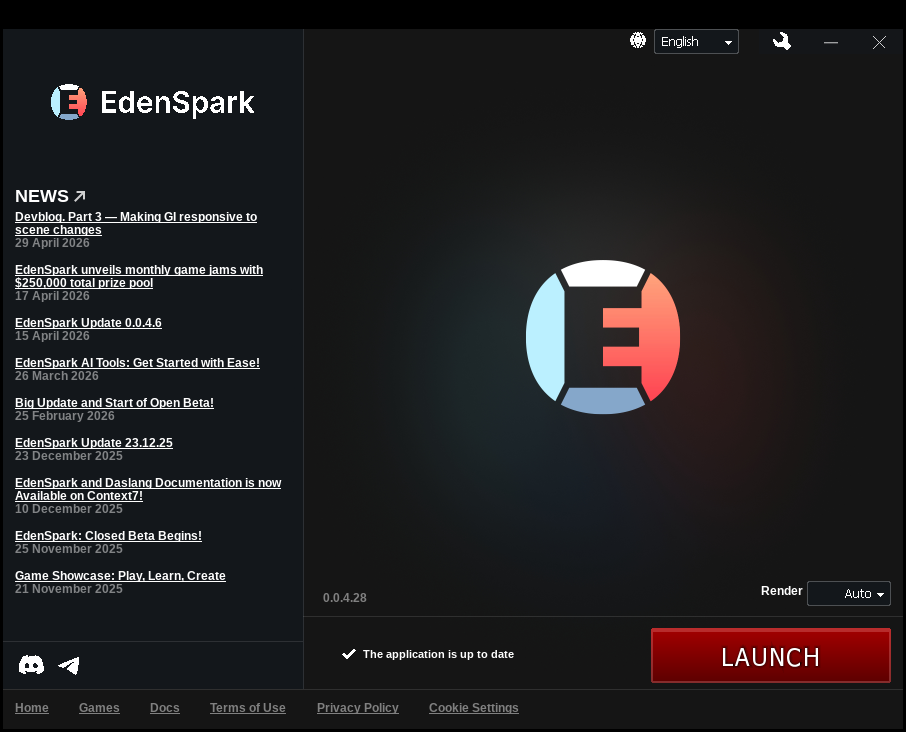
EdenSpark supports Vulkan, so if you hit rendering issues you can switch the Render dropdown
in the bottom-right of the launcher from Auto to Vulkan.
wine
If you prefer to avoid Steam, you can run EdenSpark directly under wine.
Prerequisites
Install wine.
Note that some distributions, Ubuntu included, have an outdated wine package in their repos, so using an official guide is recommended.
On Arch you can use
sudo pacman -S wine
EdenSpark doesn’t need any other components like wine-mono, so there is no need to install anything else.
To initialize wine prefix, run
wineboot --init
The explicit initialization is unnecessary as it will be performed at first wine launch,
but this will allow to configure wine pre-installation (see below).
From now on we will assume that default wine prefix path ~/.wine is used, and user directory is the same as Linux $USER.
Installation
EdenSpark holds some data in Documents directory, which by default is linked to Linux directory ~/Documents.
If you wish to keep wine data completely separate, make sure to remove the link:
winecfg
Under “Desktop Integration > Folders” remove desired links.
Download EdenSpark installer here. Launch it with
wine edenspark_updater_1.0.0.14.exe
and follow the installation process normally.
Configuration
EdenSpark supports Vulkan, so in the updater you’ll need to switch Render dropdown from auto to vulkan.
Unfortunately in our testing we found that the updater rendering is buggy, which causes the drop down to not work.
In such case, you can switch render engine manually:
Open ~/.wine/drive_c/users/$USER/AppData/Local/EdenSpark/eden.config.blk. Under video block, set driver:t="vulkan"
Running
You can start EdenSpark using the desktop icon created during installation
(at ~/.wine/drive_c/users/$USER/Desktop or ~/Desktop if link wasn’t removed).
If you chose not to create the icon, you can always launch using
wine "C:/users/$USER/AppData/Local/EdenSpark/launcher.exe"
Further improvements
EdenSpark allows you to open a VS Code project of a game.
If you wish to use this feature, you’ll need to “install” VSCode to wine.
Here’s how you can do it: create this script named Code.exe somewhere in Windows’ %PATH%, for example ~/.wine/drive_c/windows
#!/bin/bash

code "$(winepath -u "$1")"
Do not forget to chmod +x it.