
Preferences
The Preferences window holds editor and project settings. Open it from Edit > Preferences… in the main menu. Changes are saved automatically and kept per project. The window has two tabs: General and Project.
General
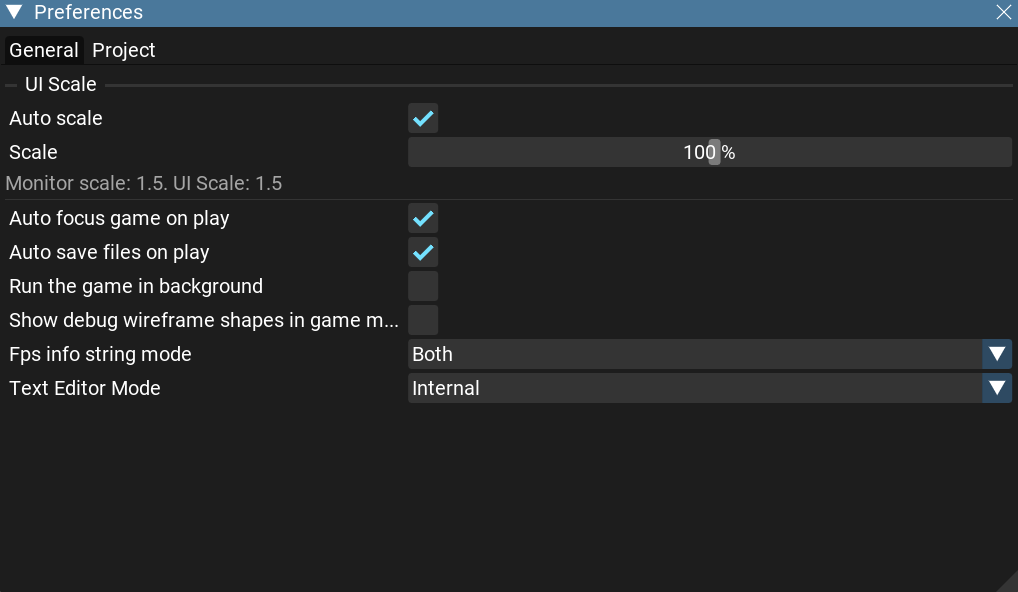
UI Scale
Auto scale — scale the interface automatically to match the monitor’s scale factor.
Scale — the interface scale, as a percentage. The available range depends on whether Auto scale is on and on the monitor’s scale factor.
Below the slider, a read-out shows the monitor scale factor and the resulting UI scale.
Other settings
Auto focus game on play — give the game viewport focus when you start the game.
Auto save files on play — save any modified files automatically when the game starts.
Run the game in background — keep the game running while the editor window is not focused.
Show debug wireframe shapes in game mode — self-explanatory.
Fps info string mode — where to show the lightweight FPS counter: None, In Editor, In Fullscreen Game, or Both. (This is the small counter; the full breakdown is the Statistics overlay.)
Text Editor Mode — which editor opens project files: the built-in Code Editor, VS Code, or a custom external editor (with a configurable command using
{file},{line}, and{project}macros).
Project
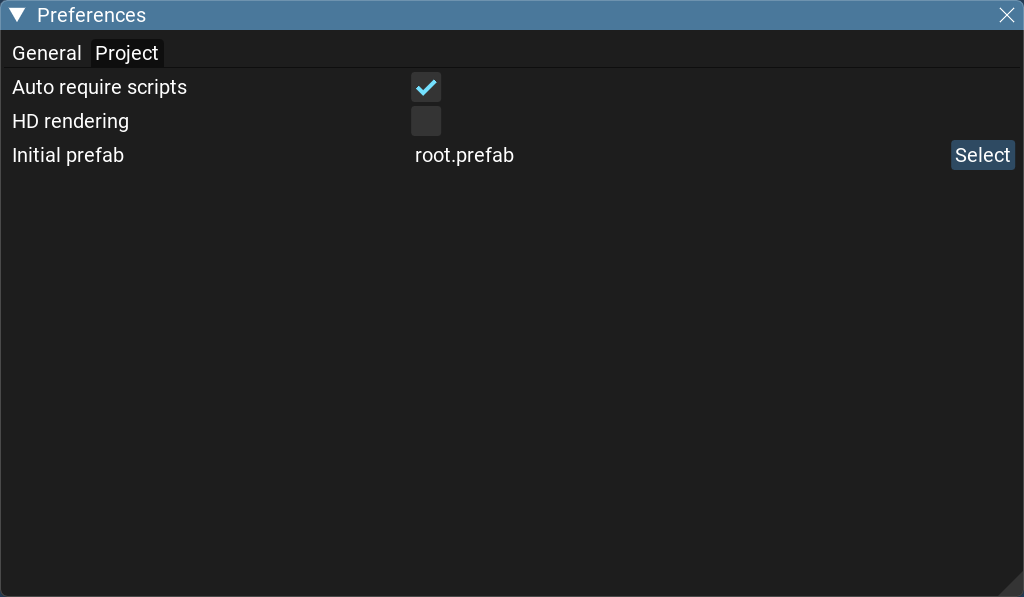
Auto require scripts — automatically
requireall scripts in the project.HD rendering — enable the HD rendering pipeline for the project. Changing this requires restarting the editor, so a prompt appears reminding you to restart.
Initial prefab — the prefab instantiated when the game starts. (You can also set this from a prefab’s context menu in the Project panel.)