
Editor
EdenSpark’s editor is where you assemble scenes, tune components, import assets, and run your game
without leaving the application. It opens when you launch a project, and you can switch between the
editor and the running game at any time with F10.
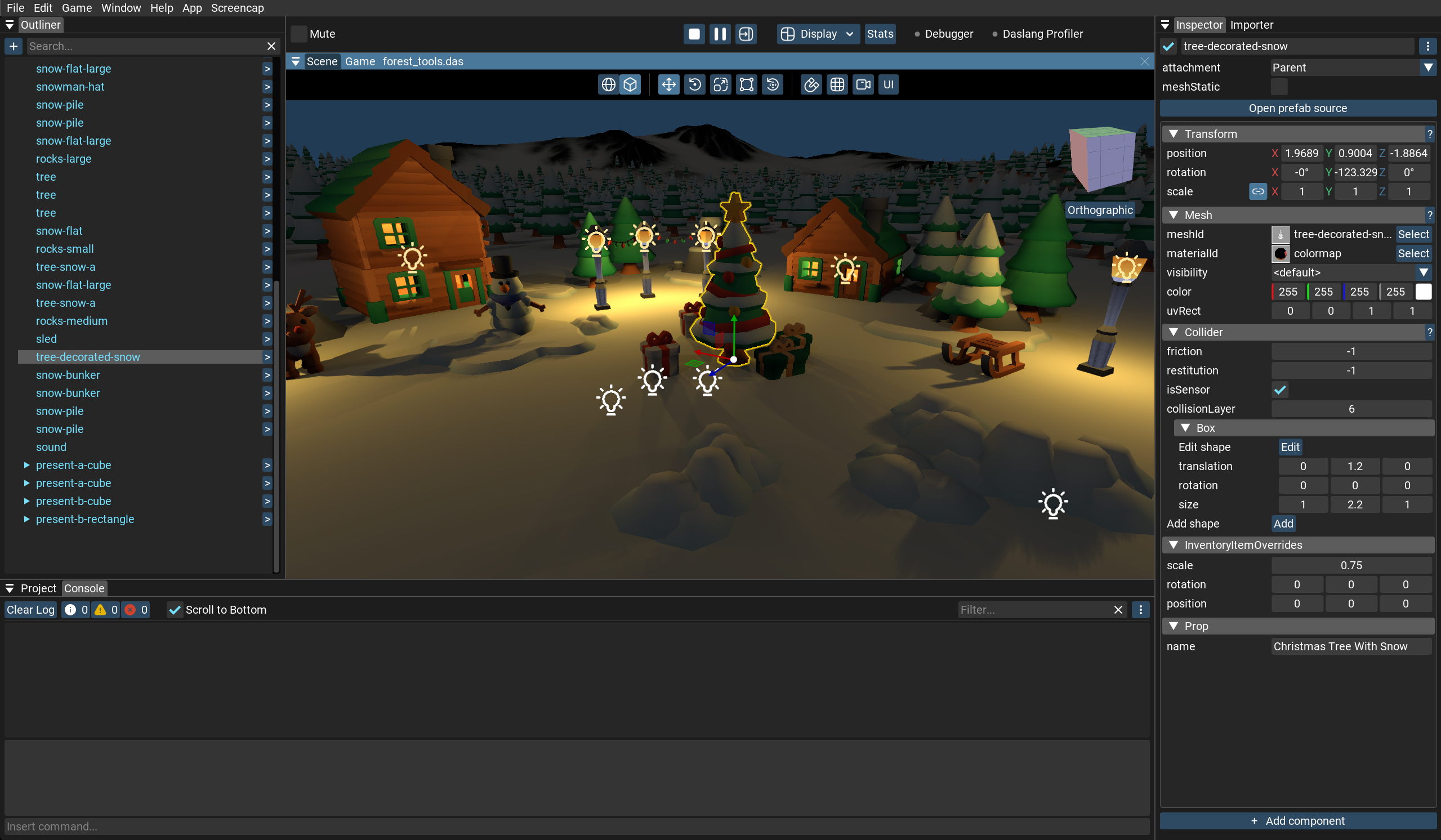
The workspace
By default the editor is arranged around the central viewport:
Toolbar (top) — play, pause, and step the game; switch shading and display modes; toggle the statistics overlay, debugger, and Daslang profiler.
Outliner (left) — the scene tree. Create nodes, build the hierarchy, and select what you want to edit.
Viewport (center) — the 3D view, with Scene, Game, and (while editing a prefab) Prefab tabs. Move objects with the transform gizmo, or watch the game play.
Inspector and Importer (right) — the Inspector edits the selected node’s components; the Importer edits the import settings of the asset selected in the Project panel.
Project panel and Console (bottom) — browse and manage project files, and read log output or run console commands.
Scripts and text files open in the code editor, as tabs alongside the viewport.
Docking and layout
The panels are dockable windows. Drag a panel by its tab to move it, dock it against another panel, or pull it out as a floating window; drag the borders between panels to resize them. The layout is saved per project and restored the next time you open it.
Use Window > Reset Docking to return to the default arrangement. The layout also resets automatically after an editor update that changes the default layout.
The Welcome screen
When no scene is loaded — on a fresh project, and whenever the game is stopped without a prefab open —
the viewport shows a Welcome tab. It offers quick actions to create the Initial prefab or open the
project’s main.das script, along with links to the documentation, website, and community channels.
A typical session
Bring assets in by dropping files into the Project panel, and adjust their import settings in the Importer.
Build the scene in the Outliner — add nodes, drop in prefabs and models, and arrange the hierarchy.
Position objects in the Viewport with the gizmo, and configure their components in the Inspector.
Press Play (
Ctrl+P) on the Toolbar to run the game in the Game tab, then stop to return to editing. Edits are undoable withCtrl+Z.
Across the editor
A few systems are shared by every panel:
Drag and drop — reparenting nodes, assigning resources, and instantiating prefabs are all done by dragging between panels.
Notifications — transient messages (compile results, warnings, errors) stack in the bottom-right corner.
Keyboard shortcuts — most actions have one; undo / redo is
Ctrl+Z/Ctrl+Shift+Z.The Main menu and Preferences hold application-wide actions and settings.