
Importer
The Importer is the panel that shows the editor for whatever asset is currently selected in the Project panel. By default it is docked on the right, sharing a tab group with the Inspector — the Inspector edits the selected scene node, while the Importer edits the selected asset file.
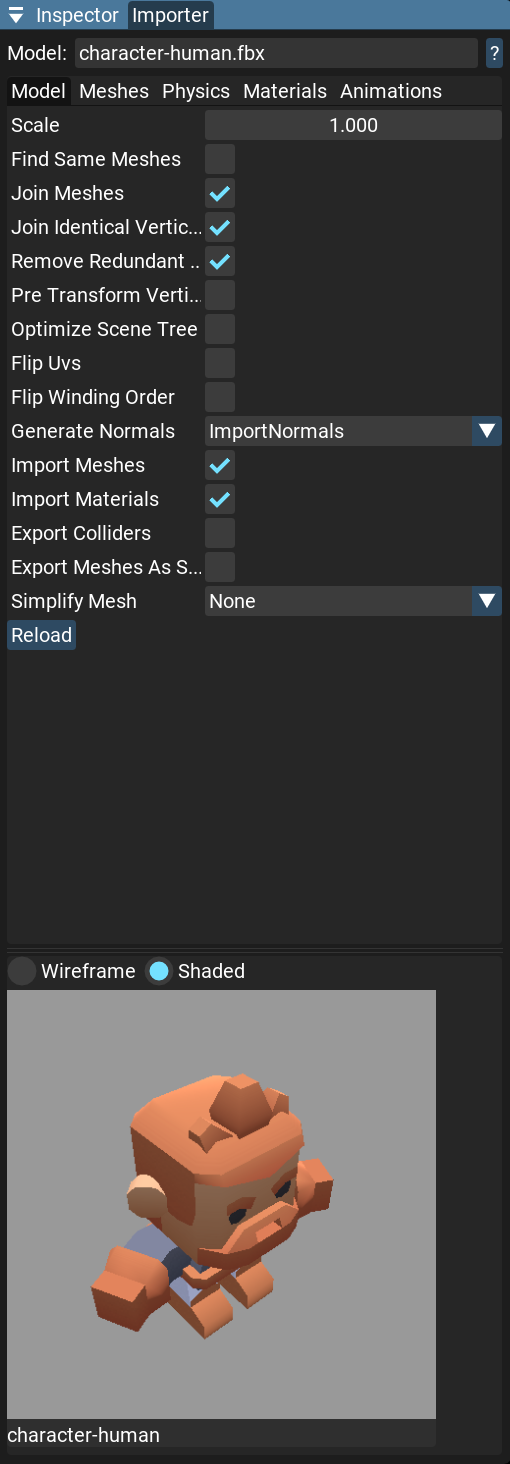
Select a file in the Project panel and its import settings (or a preview) appear here. Changes are applied immediately and trigger a rebuild of the asset, so every node or script that uses it updates in place.
Asset editors
Each asset type has its own editor, documented in the Resources section:
Material — pick the shader, assign textures, and set its properties. See Material Editor Tools.
Texture — filtering, wrapping, sRGB, mip generation, and format, with a channel/mip preview. See Texture Editor Tools.
CubeMap — build a skybox from six faces or a single texture. See CubeMaps and Skyboxes.
Model — mesh, physics, material, and animation import settings. See Model Editor Tools.
Sound — load type and a preview player. See Sounds.
Font — fallback fonts and glyph ranges. See Fonts.
Texture array assets are edited inline in this panel (a list of texture slots with + / -), and have no separate page.
Non-asset selections
A few file types are not assets with import settings; for these the Importer shows a summary instead:
Script (
.das) and text/binary files — a read-only preview of the file’s first lines. Open text files in the code editor to edit. These assets are imported by extension (.txt,.json,.xml,.data) and requested withrequest_text(returns aTextId). Read the bytes back withget_text_assetfor text (astring) orget_binary_assetfor arbitrary binary content (anarray<uint8>, safe for embedded zero bytes) - see Resources. Parse the structured text formats into typed values withfrom_json(JSON) orfrom_xml(XML) - see Format.Prefab (
.prefab) — a documentation link and, for editable prefabs, an Open prefab source button that opens it in the prefab editor. See Prefabs.Shader and Shader Graph — build messages, plus a button to open the shader graph editor or a disassembly preview.